MOTOSHARE 🚗🏍️
Rent Bikes & Cars Directly from Owners
Motoshare connects vehicle owners with people who need bikes and cars on rent. Owners earn from idle vehicles, and renters get flexible ride options.
Visit Motoshare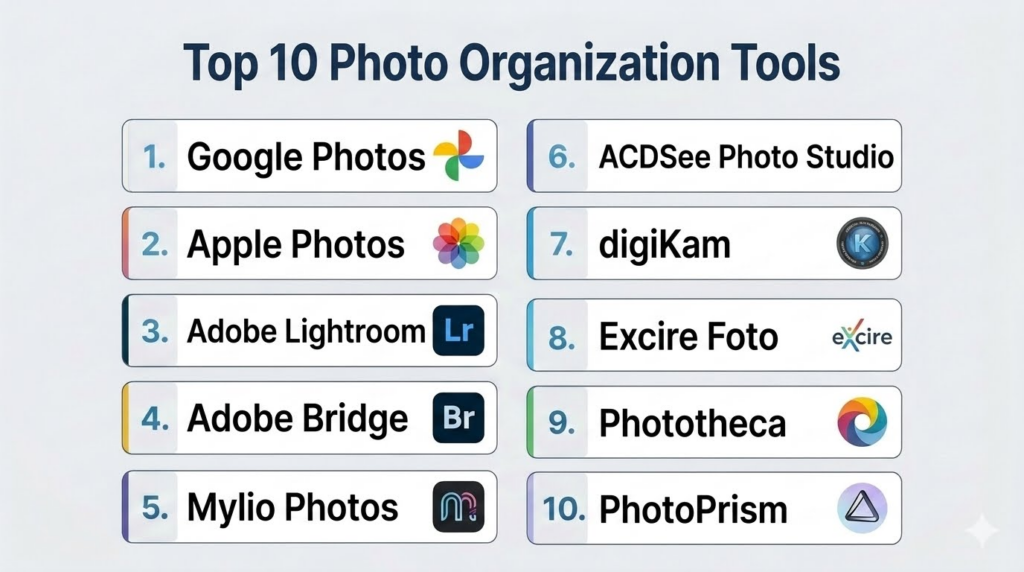
Introduction
Photo Organization Tools help users store, sort, search, tag, back up, edit, share, and manage large photo libraries across phones, computers, cloud storage, cameras, and external drives. These tools make it easier to find memories, client shoots, product images, family albums, travel photos, creative assets, and visual archives without manually digging through folders.Photo organization matters because people now capture thousands of images across multiple devices. Without a proper system, photos become duplicated, scattered, poorly labeled, or difficult to retrieve. Modern photo organization tools use AI search, face recognition, object detection, location grouping, albums, metadata, cloud sync, duplicate detection, and editing workflows to simplify digital photo management.
Real-world use cases include:
- Organizing family and travel photo libraries
- Managing professional photography catalogs
- Finding photos by faces, places, objects, or events
- Backing up images across cloud and local storage
- Sharing albums with clients, teams, or family members
Buyers evaluating Photo Organization Tools should consider:
- AI search and face recognition
- Cloud backup and sync
- Local storage support
- Duplicate photo detection
- Metadata and tagging features
- Editing and enhancement tools
- Album sharing and collaboration
- Privacy and encryption options
- Platform compatibility
- Pricing and storage value
Best for: Photographers, families, creators, marketers, designers, agencies, bloggers, students, businesses, and anyone managing large image collections.
Not ideal for: Users with very small photo libraries, teams needing full enterprise digital asset management, or privacy-focused users who do not want cloud-based photo scanning.
Key Trends in Photo Organization Tools
- AI-powered search is becoming a core feature for finding photos by people, objects, locations, and events.
- Face recognition is helping users automatically group family members, friends, clients, and subjects.
- Cloud backup is now essential because users capture photos across phones, tablets, cameras, and desktops.
- Local-first photo tools are gaining attention from users who want more privacy and ownership.
- Duplicate detection is becoming more important as photo libraries grow across multiple devices.
- Professional photographers are prioritizing metadata, rating, tagging, and batch editing workflows.
- Mobile-first organization is growing because most users capture and manage photos from smartphones.
- Shared albums are becoming useful for families, events, teams, and client delivery.
- AI editing and automatic enhancement are increasingly bundled with organization tools.
- Privacy expectations are rising because photo libraries may include personal faces, locations, documents, children, and private events.
How We Selected These Tools
The tools in this list were selected based on photo organization quality, platform support, AI features, storage workflows, usability, editing capabilities, and fit across personal and professional use cases.
Selection criteria included:
- Photo library organization and search quality
- AI recognition for faces, places, objects, and scenes
- Cloud backup and synchronization support
- Local storage and offline workflows
- Metadata, tagging, rating, and filtering depth
- Duplicate detection and cleanup tools
- Sharing, collaboration, and album workflows
- Editing and enhancement capabilities
- Privacy and account control expectations
- Value for individuals, families, creators, and photographers
Top 10 Photo Organization Tools
1- Google Photos
Short description:
Google Photos is one of the most widely used photo organization tools for automatic backup, AI search, face grouping, album creation, and cross-device access. It is especially useful for everyday users who want a simple way to store and find photos without manually managing folders. The platform can organize images by people, places, objects, events, and dates. It works well for families, mobile-first users, and anyone who wants easy cloud-based photo management.
Key Features
- Automatic photo and video backup
- AI-powered image search
- Face grouping and people albums
- Location and event-based organization
- Shared albums
- Basic photo editing tools
- Cross-device access
Pros
- Excellent search and automatic organization
- Very easy for everyday users
- Strong mobile and cloud experience
Cons
- Storage limits depend on account plan
- Cloud-based scanning may not suit privacy-focused users
- Professional metadata tools are limited
Platforms / Deployment
- Web
- iOS
- Android
- Cloud
Security & Compliance
- Google account-based controls
- Two-step verification support
- Privacy settings
- Encryption
- Compliance depends on Google account configuration
Integrations & Ecosystem
Google Photos fits naturally into mobile, cloud, and Google ecosystem workflows.
- Google Drive ecosystem
- Android devices
- iOS backup
- Shared albums
- Google account sync
- Smart displays and casting workflows
Support & Community
Google Photos has broad consumer adoption, strong help resources, and a familiar interface for mobile-first users.
2- Apple Photos
Short description:
Apple Photos is a native photo organization app for iPhone, iPad, and Mac users. It helps users organize photos through albums, memories, people recognition, locations, search, shared albums, and iCloud sync. Apple Photos is especially useful for users fully invested in the Apple ecosystem. It provides a smooth, privacy-conscious experience for personal photo libraries and family sharing workflows.
Key Features
- iCloud photo sync
- People and pet recognition
- Album and folder organization
- Memories and smart collections
- Location-based photo browsing
- Built-in editing tools
- Shared albums and family sharing
Pros
- Excellent Apple ecosystem integration
- Smooth user experience across devices
- Good privacy-focused design
Cons
- Best experience requires Apple devices
- Storage depends on iCloud plan
- Advanced professional cataloging is limited
Platforms / Deployment
- iOS
- iPadOS
- macOS
- iCloud
- Cloud / Device-based workflows
Security & Compliance
- Apple account controls
- Device-level privacy controls
- Encryption
- Biometric protection through device settings
- Compliance varies by account setup
Integrations & Ecosystem
Apple Photos works deeply with Apple devices and services.
- iPhone camera roll
- iCloud
- macOS Photos
- Shared albums
- Family Sharing
- Apple editing workflows
Support & Community
Apple Photos benefits from Apple’s device support ecosystem, user guides, and strong adoption among iPhone and Mac users.
3- Adobe Lightroom
Short description:
Adobe Lightroom is a professional photo management and editing platform used by photographers, creators, agencies, and serious hobbyists. It combines photo organization, cloud sync, metadata, albums, presets, rating, tagging, and advanced editing in one workflow. Lightroom is especially useful for users who need both catalog management and high-quality photo editing. It works well for professional shoots, content creation, travel photography, and creative portfolios.
Key Features
- Photo catalog management
- Advanced editing tools
- Cloud sync on selected plans
- Ratings, flags, and albums
- Metadata editing
- Presets and batch workflows
- AI-assisted search and masking features
Pros
- Strong professional editing and organization
- Good for large creative libraries
- Excellent mobile and desktop workflow
Cons
- Subscription-based pricing
- Learning curve for beginners
- Cloud storage can increase costs
Platforms / Deployment
- Windows
- macOS
- iOS
- Android
- Web
- Cloud / Desktop
Security & Compliance
- Adobe account controls
- Encryption
- Team and enterprise controls vary by plan
- Compliance varies by Adobe plan
Integrations & Ecosystem
Lightroom fits well into professional creative workflows.
- Adobe Creative Cloud
- Photoshop
- Camera RAW workflows
- Mobile editing
- Cloud galleries
- Preset ecosystems
Support & Community
Adobe Lightroom has extensive documentation, tutorials, professional training resources, and a large photographer community.
4- Adobe Bridge
Short description:
Adobe Bridge is a digital asset management tool focused on browsing, organizing, tagging, previewing, and managing creative files across local storage. It is especially useful for photographers, designers, and creative professionals who work with large local folders of images, RAW files, videos, and design assets. Bridge is not as cloud-focused as Lightroom, but it is strong for folder-based asset management and metadata workflows.
Key Features
- Local file browsing
- Metadata editing
- Batch renaming
- Ratings and labels
- RAW file previews
- Collections and filters
- Integration with Adobe apps
Pros
- Strong local file management
- Useful for creative asset workflows
- Good metadata and batch tools
Cons
- Not ideal for casual mobile users
- Interface can feel technical
- Cloud sync is not the main focus
Platforms / Deployment
- Windows
- macOS
- Desktop
Security & Compliance
- Local file-based workflows
- Security depends on device and storage setup
- Adobe account controls where applicable
- Detailed compliance varies by environment
Integrations & Ecosystem
Adobe Bridge works well inside professional creative production workflows.
- Photoshop
- Illustrator
- InDesign
- Camera RAW
- Local storage
- Creative file pipelines
Support & Community
Adobe Bridge has strong documentation and is widely used by creative professionals who manage local asset libraries.
5- Mylio Photos
Short description:
Mylio Photos is a photo organization platform designed for users who want to manage photos across devices while maintaining more control over storage. It helps users organize images by people, places, dates, folders, ratings, and metadata. Mylio is especially useful for families, travelers, photographers, and privacy-conscious users who want local-first style photo management with optional device syncing. It is a strong choice for large personal libraries spread across phones, computers, and drives.
Key Features
- Multi-device photo organization
- Face recognition
- Calendar and map views
- Local and device-based storage workflows
- Duplicate detection
- Metadata support
- Offline access
Pros
- Strong control over photo storage
- Good for large personal libraries
- Useful for privacy-conscious users
Cons
- Setup may take effort
- Less familiar than Google Photos or Apple Photos
- Advanced features may require paid plans
Platforms / Deployment
- Windows
- macOS
- iOS
- Android
- Local-first / Sync-supported
Security & Compliance
- Device-based photo storage options
- Privacy-focused workflows
- Account-based controls
- Detailed compliance is Not publicly stated
Integrations & Ecosystem
Mylio Photos supports multi-device and local-first photo organization.
- External drives
- Local folders
- Mobile photo libraries
- Metadata workflows
- Offline photo access
- Duplicate cleanup workflows
Support & Community
Mylio provides onboarding resources and support for users managing large distributed photo libraries.
6- ACDSee Photo Studio
Short description:
ACDSee Photo Studio is a photo management and editing tool designed for photographers and advanced users who need local cataloging, metadata tools, RAW support, batch processing, and editing features. It is especially useful for users who prefer desktop-based organization rather than fully cloud-based photo libraries. ACDSee supports large collections and gives users strong control over file organization, ratings, keywords, and workflows.
Key Features
- Photo catalog management
- RAW file support
- Keyword tagging
- Metadata editing
- Batch processing
- Duplicate finder
- Photo editing tools
Pros
- Strong desktop photo management
- Good for local file control
- Useful batch and metadata tools
Cons
- Interface may feel complex for beginners
- Cloud collaboration is limited
- Best suited for desktop workflows
Platforms / Deployment
- Windows
- macOS
- Desktop
Security & Compliance
- Local storage workflows
- Security depends on device and file system
- Account-based features vary by plan
- Detailed compliance is Not publicly stated
Integrations & Ecosystem
ACDSee supports photographer-focused local organization and editing workflows.
- RAW workflows
- Local folders
- Metadata tools
- Batch editing
- Duplicate detection
- Export workflows
Support & Community
ACDSee has long-standing adoption among photographers and provides documentation, tutorials, and support resources.
7- digiKam
Short description:
digiKam is a free and open-source photo management tool designed for users who want strong local photo organization, metadata editing, tagging, facial recognition, and RAW support. It is especially useful for Linux users, privacy-focused users, and technical photographers who want a powerful desktop organizer without subscription costs. digiKam is flexible and capable, but it may require more learning than consumer cloud tools.
Key Features
- Photo catalog management
- Tags and labels
- Face recognition
- Metadata editing
- RAW support
- Batch processing
- Duplicate detection
Pros
- Free and open-source
- Strong local photo management
- Good metadata and tagging support
Cons
- Interface can feel technical
- Setup and learning curve may be higher
- Cloud sync is not the main strength
Platforms / Deployment
- Windows
- macOS
- Linux
- Desktop
Security & Compliance
- Local storage workflows
- Open-source transparency
- Security depends on device and storage setup
- Detailed compliance is Not publicly stated
Integrations & Ecosystem
digiKam supports local photo organization and advanced metadata workflows.
- Local folders
- RAW file workflows
- Metadata standards
- Open-source ecosystem
- Batch processing
- Export workflows
Support & Community
digiKam has an open-source community, documentation, and strong adoption among technical users and Linux photographers.
8- Excire Foto
Short description:
Excire Foto is an AI-powered photo organization tool focused on fast local photo search, automatic keywording, duplicate detection, and smart image discovery. It is especially useful for photographers and advanced users who want AI search without relying completely on cloud-based photo libraries. Excire Foto helps users find photos by content, faces, visual similarity, and keywords. It is a strong option for local photo libraries that need smarter search.
Key Features
- AI-powered photo search
- Automatic keywording
- Face recognition
- Duplicate photo detection
- Visual similarity search
- Local photo cataloging
- Rating and organization tools
Pros
- Strong AI search for local libraries
- Useful duplicate and similarity detection
- Good for photographers with large collections
Cons
- Less known than mainstream tools
- More useful for serious photo libraries than casual users
- Requires desktop-based workflow
Platforms / Deployment
- Windows
- macOS
- Desktop
Security & Compliance
- Local processing focus
- Security depends on device setup
- Detailed compliance is Not publicly stated
Integrations & Ecosystem
Excire Foto supports AI-powered local photo management.
- Local image libraries
- AI keywording
- Duplicate detection
- Photo search workflows
- Photographer catalog workflows
Support & Community
Excire provides documentation and support for photographers using AI-based photo organization.
9- Phototheca
Short description:
Phototheca is a desktop photo management tool for organizing, tagging, sorting, and managing personal photo libraries. It supports albums, smart albums, face recognition, duplicate detection, timeline views, and metadata management. Phototheca is especially useful for Windows users who want a dedicated local photo organizer for family photos, travel libraries, and personal archives. It is easier than some professional tools while offering more organization depth than basic folder browsing.
Key Features
- Photo library organization
- Face recognition
- Duplicate detection
- Albums and smart albums
- Timeline views
- Metadata support
- Tagging and search
Pros
- Good for local personal libraries
- Useful duplicate cleanup
- Easier than many pro photo tools
Cons
- Windows-focused
- Less cloud-native than consumer platforms
- Not as advanced for professional editing
Platforms / Deployment
- Windows
- Desktop
Security & Compliance
- Local storage workflows
- Security depends on device and file setup
- Detailed compliance is Not publicly stated
Integrations & Ecosystem
Phototheca supports local personal photo library management.
- Local folders
- Face grouping
- Duplicate cleanup
- Album organization
- Timeline browsing
- Metadata workflows
Support & Community
Phototheca provides user guides and support for Windows users managing personal photo collections.
10- PhotoPrism
Short description:
PhotoPrism is a self-hosted photo management platform designed for users who want private photo organization, AI search, albums, metadata, and web-based access under their own control. It is especially useful for technical users, privacy-focused families, and self-hosting enthusiasts who want an alternative to mainstream cloud photo platforms. PhotoPrism can organize photos by content, location, time, labels, and metadata while keeping storage under user control.
Key Features
- Self-hosted photo library
- AI-powered image classification
- Albums and labels
- Metadata support
- Search and filtering
- Map and location views
- Web-based interface
Pros
- Strong privacy and ownership control
- Useful AI features in self-hosted setup
- Good for technical users and families
Cons
- Requires technical setup and maintenance
- Not ideal for casual users
- Mobile experience depends on setup and ecosystem
Platforms / Deployment
- Web
- Self-hosted
- Docker-supported environments
- Server-based workflows
Security & Compliance
- Self-managed security
- Access controls depend on deployment
- Privacy-focused self-hosting model
- Compliance varies by user-managed environment
Integrations & Ecosystem
PhotoPrism supports self-hosted and privacy-first photo management.
- Local servers
- NAS environments
- Docker workflows
- Metadata tools
- AI image classification
- Web photo libraries
Support & Community
PhotoPrism has an active self-hosting community, documentation, and strong appeal among privacy-focused users.
Comparison Table
| Tool Name | Best For | Platform Supported | Deployment | Standout Feature | Public Rating |
|---|---|---|---|---|---|
| Google Photos | Everyday cloud photo management | Web, iOS, Android | Cloud | AI search and automatic backup | N/A |
| Apple Photos | Apple ecosystem users | iOS, macOS, iCloud | Cloud / Device workflows | Native Apple photo organization | N/A |
| Adobe Lightroom | Professional photographers | Windows, macOS, iOS, Android, Web | Cloud / Desktop | Editing plus catalog management | N/A |
| Adobe Bridge | Local creative asset management | Windows, macOS | Desktop | Metadata and folder-based workflows | N/A |
| Mylio Photos | Multi-device personal libraries | Windows, macOS, iOS, Android | Local-first / Sync-supported | Device-based photo control | N/A |
| ACDSee Photo Studio | Desktop photo cataloging | Windows, macOS | Desktop | Batch and metadata workflows | N/A |
| digiKam | Open-source photo management | Windows, macOS, Linux | Desktop | Free local photo cataloging | N/A |
| Excire Foto | AI search for local libraries | Windows, macOS | Desktop | Local AI photo search | N/A |
| Phototheca | Windows personal photo libraries | Windows | Desktop | Face recognition and duplicate cleanup | N/A |
| PhotoPrism | Self-hosted photo libraries | Web, Server environments | Self-hosted | Private AI photo organization | N/A |
Evaluation & Scoring of Photo Organization Tools
| Tool Name | Core 25% | Ease 15% | Integrations 15% | Security 10% | Performance 10% | Support 10% | Value 15% | Weighted Total |
|---|---|---|---|---|---|---|---|---|
| Google Photos | 9 | 9 | 9 | 8 | 9 | 9 | 8 | 8.7 |
| Apple Photos | 8 | 9 | 9 | 9 | 9 | 9 | 8 | 8.6 |
| Adobe Lightroom | 9 | 7 | 9 | 8 | 9 | 9 | 7 | 8.3 |
| Adobe Bridge | 8 | 7 | 9 | 8 | 8 | 8 | 8 | 8.0 |
| Mylio Photos | 8 | 8 | 7 | 8 | 8 | 8 | 8 | 7.9 |
| ACDSee Photo Studio | 8 | 7 | 7 | 7 | 8 | 8 | 8 | 7.6 |
| digiKam | 8 | 6 | 7 | 8 | 8 | 7 | 10 | 7.7 |
| Excire Foto | 8 | 7 | 7 | 8 | 8 | 7 | 7 | 7.5 |
| Phototheca | 7 | 8 | 6 | 7 | 8 | 7 | 8 | 7.3 |
| PhotoPrism | 8 | 6 | 7 | 9 | 8 | 7 | 9 | 7.7 |
These scores are comparative and should be interpreted based on photo workflow needs. Casual users may prefer Google Photos or Apple Photos because of easy backup and search. Professional photographers may value Lightroom, Bridge, ACDSee, or digiKam more highly. Privacy-focused and technical users may prefer Mylio Photos or PhotoPrism.
Which Photo Organization Tool Is Right for You?
Solo / Freelancer
Solo users should choose based on device ecosystem and storage preference. Google Photos is ideal for Android and cloud-first users, while Apple Photos is best for iPhone and Mac users. Freelancers who create visual content may prefer Lightroom for editing and cataloging. Privacy-focused freelancers may consider Mylio Photos or PhotoPrism.
SMB
Small businesses, creators, agencies, and marketing teams often need organized visual libraries for campaigns, product images, events, and client work. Lightroom and Adobe Bridge are strong for creative workflows, while Google Photos may work for lightweight team sharing. SMBs should prioritize search, permissions, storage cost, and export flexibility.
Mid-Market
Mid-market organizations may require better asset governance, metadata, tagging, and collaboration. Adobe Bridge and Lightroom can support creative teams, but larger organizations may eventually need full digital asset management platforms. Photo organization tools can still support departmental photo libraries, event archives, and marketing collections.
Enterprise
Enterprises should prioritize access controls, retention policies, compliance, metadata governance, and integration with existing asset systems. Consumer photo tools may not be enough for regulated or brand-sensitive environments. Enterprise teams should review whether a full DAM solution is needed instead of a general photo organizer.
Budget vs Premium
Budget-conscious users can start with Apple Photos, Google Photos, digiKam, or PhotoPrism depending on ecosystem and technical comfort. Premium tools like Lightroom, ACDSee, Excire Foto, and Mylio Photos may be worth it for advanced cataloging, AI search, editing, or privacy-focused workflows. Storage costs should be reviewed carefully.
Feature Depth vs Ease of Use
Google Photos and Apple Photos are easiest for everyday users. Lightroom and ACDSee provide deeper professional workflows. digiKam is powerful but more technical. Mylio Photos offers a balance between control and usability. PhotoPrism is powerful for self-hosted users but requires setup and maintenance.
Integrations & Scalability
Users should evaluate camera workflows, cloud storage, external drives, mobile backup, editing apps, metadata standards, and sharing needs. Adobe tools integrate well with creative workflows, while Google and Apple tools fit consumer ecosystems. Self-hosted users should evaluate NAS, server, and backup compatibility.
Security & Compliance Needs
Photo libraries may contain private faces, children, homes, documents, travel history, locations, and sensitive business visuals. Users should review cloud sync settings, face recognition controls, sharing permissions, account security, and backup methods. Organizations should avoid storing sensitive business images in unmanaged personal photo accounts.
Frequently Asked Questions
1. What are Photo Organization Tools?
Photo Organization Tools are apps or platforms that help users store, sort, search, tag, back up, and manage digital photos. They often include albums, folders, face recognition, AI search, metadata editing, duplicate detection, and sharing tools. Some are designed for casual family libraries, while others support professional photography workflows. Their main goal is to make photo collections easier to find, protect, and reuse.
2. Which Photo Organization Tool is best for everyday users?
Google Photos and Apple Photos are usually the easiest options for everyday users. Google Photos is strong for cloud backup and AI search, while Apple Photos works smoothly for iPhone, iPad, and Mac users. Both are simple to use and require little manual organization. The best choice usually depends on whether the user is more invested in Google or Apple devices.
3. Which tool is best for professional photographers?
Adobe Lightroom is one of the strongest choices for professional photographers because it combines catalog management with advanced editing. Adobe Bridge is useful for local file browsing and metadata workflows. ACDSee, digiKam, and Excire Foto are also strong options depending on whether the user wants desktop control, open-source flexibility, or AI-powered local search.
4. Are cloud photo tools safe for privacy?
Cloud photo tools can be convenient, but users should review privacy settings, account security, face recognition controls, sharing links, and backup behavior. Photo libraries may include highly personal information such as faces, locations, documents, and private events. Privacy-focused users may prefer local-first or self-hosted tools like Mylio Photos, digiKam, or PhotoPrism.
5. How do AI photo organization features work?
AI photo organization features analyze images to identify faces, objects, scenes, locations, and visual patterns. This helps users search for terms like beach, dog, car, birthday, or a person’s name. AI can make large libraries easier to search, but results may not always be perfect. Users should still use albums, tags, and backups for important collections.
6. What is the best tool for duplicate photo cleanup?
Mylio Photos, ACDSee Photo Studio, digiKam, Excire Foto, and Phototheca offer useful duplicate detection or similar cleanup workflows. Duplicate cleanup is important when users import photos from multiple phones, cloud backups, cameras, and drives. Before deleting duplicates, users should back up their library and review results carefully to avoid accidental loss.
7. Should I choose cloud-based or local photo organization?
Cloud-based tools are easier for automatic backup, mobile access, and sharing. Local tools provide more control, privacy, and offline access. Casual users often prefer cloud tools like Google Photos or Apple Photos, while photographers and privacy-focused users may prefer Lightroom Classic, Bridge, digiKam, Mylio Photos, or PhotoPrism. The best setup depends on convenience, privacy, and backup needs.
8. What are common mistakes users make with photo organization?
A common mistake is relying on one storage location without backups. Another mistake is keeping thousands of duplicates and screenshots mixed with important memories. Users also often ignore metadata, folder structure, and export options until libraries become difficult to manage. A good workflow should include backup, cleanup, tagging, albums, and periodic library review.
9. Can Photo Organization Tools replace digital asset management systems?
Photo organization tools can manage personal and small business image libraries, but they may not replace full digital asset management systems for enterprises. DAM platforms usually include stronger permissions, approval workflows, brand governance, licensing, and asset lifecycle controls. Creative teams can start with photo organizers, but larger organizations may eventually need DAM software.
10. How should users choose the right Photo Organization Tool?
Users should first identify their main need: cloud backup, local control, professional editing, duplicate cleanup, AI search, or private self-hosting. Google Photos and Apple Photos are best for everyday convenience, Lightroom for professional editing, digiKam for open-source local organization, Mylio Photos for multi-device control, and PhotoPrism for self-hosting. The right tool should make photos easier to find, protect, and share over time.
Conclusion
Photo Organization Tools help users bring order to growing image libraries by combining storage, search, tagging, albums, AI recognition, editing, duplicate cleanup, and backup workflows. The best tool depends on whether the user prioritizes convenience, professional editing, local control, privacy, or self-hosting. Google Photos and Apple Photos are excellent for everyday users, Adobe Lightroom and Bridge support professional creative workflows, and Mylio Photos provides stronger device-based control for large personal libraries. ACDSee, digiKam, Excire Foto, and Phototheca serve users who need desktop-based organization, while PhotoPrism is ideal for technical users wanting private self-hosted photo management. Buyers should shortlist tools based on real photo library size, test search and backup workflows, review privacy settings, compare storage and premium costs, and choose the platform that keeps their memories and visual assets organized, secure, and easy to retrieve.
